Email: Fast, Manage All Mails
- 4.6
- Rating
- 10.00M
- Installs
- Free
- Price

 Analysis by App-foxy
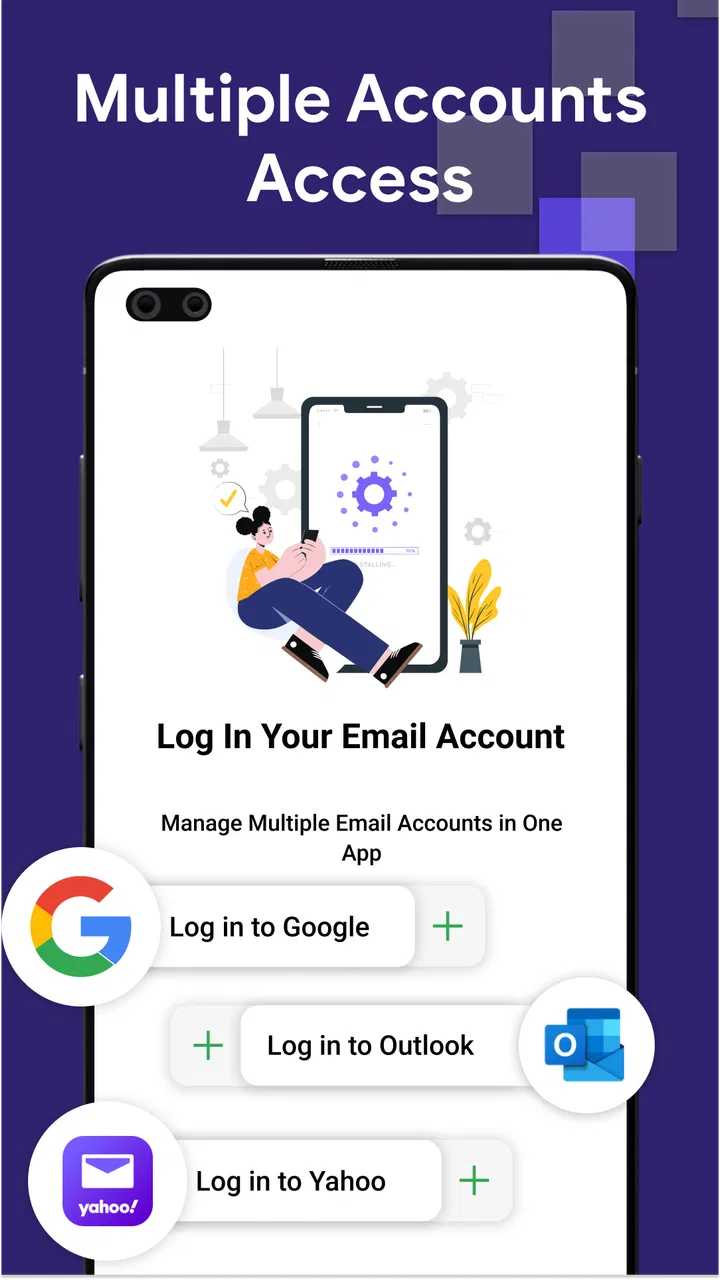
Email: Fast, Manage All Mails is a productivity app from BizApp Innovators that brings email access into one place and adds AI-assisted writing to the routine. I found its main appeal in reducing the small amount of friction between noticing a message and doing something useful with it. Instead of treating email as a collection of separate inbox habits, it gives you a focused place to read, compose, and move through messages.
The app is free, aimed at Everyone, and works on Android devices running version 6.0 or later. Its current version is 1.5.0, and it has already reached over ten million installs with a 4.5 average from around eighty-one thousand ratings. Those figures suggest that it is not a niche experiment, but they do not remove the need to decide whether its particular style suits the way you handle mail.
What to expect before you hand it your inbox
I would describe this as a practical email management app rather than a full replacement for every specialized mail service. The central promise is straightforward: access your email in one place, write messages with AI assistance, and get through everyday correspondence faster. That makes it most interesting for people who regularly switch between accounts or spend too much time staring at a blank compose window.
You May Also Like

 Blood Strike: 2.5 Anniversary
Blood Strike’s Loadouts Turn Every Drop Into a Tactical Gamble
A close look at Blood Strike’s custom loadouts: how fast access to signature weapons reshapes its battle royale rhythm, rewards preparation, and narrows the gap between fights.

 Pandora - Music & Podcasts
Pandora’s Music Is Easy to Start, but Harder to Recover
Pandora’s strength is its low-effort path from a seed to a station. Its weak spot is how much confidence it asks you to place in connection, setup, and quiet recovery.

 8 Ball Pool
 Is Built on Rivalries, Rematches, and Routine
A close look at the rivalries, rematches, shared routines, and unanswered safety questions that turn a quick pool match into a persistent mobile community.

 Samsung Music
’s Quiet Strength Is Playing What You Already Own
Its reach comes less from spectacle than from dependable access to a personal library. That simplicity is both the app’s strongest retention engine and its ceiling.

 AccuWeather: Weather Radar
AccuWeather Review: A Quick, Clear Forecast for Everyday Decisions
For everyday plans, the best forecast is the one you can understand quickly. AccuWeather makes rain timing, radar, and local conditions easy to act on, with a few trade-offs.

 Hill Climb Racing
Why Hill Climb Racing Still Turns Crashes Into One More Run
A tiny car, a bumpy hill and one more upgrade: Hill Climb Racing keeps resurfacing because its simple chaos makes every near-miss feel personal.
More From Our News Desk



The first thing to keep in mind is that convenience and control are not always the same thing. A unified inbox can make routine work feel calmer, but it also means you need to pay attention to which account a message belongs to before sending. I consider that an important habit with any multi-account mail tool, especially when personal and work conversations sit close together.
For a first-time user, the most useful expectation is not that the app will magically organize an entire inbox. Its value appears in smaller wins: finding the right message without changing apps, drafting a polite answer more quickly, or handling several accounts from one familiar workspace. If your inbox is already carefully managed in a single provider’s official app, the improvement may be modest. If your mail life is scattered, the difference can be much more noticeable.
The AI writing assistance is also best viewed as a starting point, not an automatic author. I would use it to overcome hesitation, create a rough reply, or turn a short thought into a clearer message. I would still check names, dates, attachments, promises, and tone before sending. That extra review is not a criticism unique to this app; it is simply the sensible way to use generated text in real correspondence.
Who will get the most from it
I think the app is a good fit for students, freelancers, small-business owners, and anyone who checks more than one mailbox during the day. It can also help people who write many similar but not identical replies, such as appointment confirmations, project updates, delivery questions, or follow-ups after a meeting.
A realistic example is a freelancer moving between a client account and a personal account while traveling. A client asks for a revised delivery time, another customer needs a receipt, and a personal message arrives at the same moment. With everything accessible in one place, the user can identify the relevant conversation, prepare a concise response with AI help, and then edit it into their own voice before sending. The saving is not necessarily a dramatic block of time; it is the removal of repeated little interruptions.
I would be more cautious about recommending it to someone who needs highly specialized organizational tools, strict corporate administration, or a very elaborate filing system. In those cases, the official app for a work provider or a dedicated enterprise mail client may remain the better choice. Email: Fast, Manage All Mails is strongest when speed and simplicity matter more than a deep collection of advanced controls.
How it compares with the usual alternatives
The obvious alternative is using each email provider’s official application separately. Official apps often have the deepest integration with their own service, so they can be preferable when you rely heavily on provider-specific functions, detailed search behavior, or a carefully tuned notification system. The trade-off is the repeated switching between apps and interfaces.
A conventional multi-account mail client may offer a similar unified approach, but the writing assistance is what gives this app its distinct angle. That does not automatically make it better. If you already write quickly and prefer composing everything manually, the AI element may not change your routine. If your main problem is getting started, however, a guided draft can be more useful than another folder or sorting option.
I would choose this app over several separate inboxes when my priority was quick access and a less fragmented routine. I would choose a provider’s official app when account-specific features and fine-grained settings mattered more. That is the key trade-off: Email: Fast, Manage All Mails focuses on bringing the everyday experience together rather than trying to replace every specialized workflow.
From installation to a useful first result
I’d make the first session about learning how the app presents your accounts, not reorganizing your whole inbox. Choose one ordinary message and use it to check the sender context, shape a simple reply, and see whether the combined workflow feels comfortable. That small test gives you a practical basis for deciding what to try next.
Start setup with a simple account plan
After installing the app, I recommend deciding which account you want to test first instead of trying to rebuild your entire email life immediately. Pick the mailbox that contains a few ordinary messages and one reply you genuinely need to send. This gives you a clear way to judge the app without creating confusion across every conversation at once.
As you move through setup, slow down at account selection and message ownership. When several inboxes are available, the most important early check is knowing which address you are reading from and which address will appear as the sender. I would make this a routine glance before composing, just as I check the recipient line before sending anything sensitive.
Do not begin by attempting to clean years of accumulated mail. A unified inbox is easier to understand when you first use it for current messages. Once you know how the app presents conversations, you can decide whether it deserves a larger role in your daily workflow. This staged approach also makes it easier to notice whether the layout feels clear or whether multiple accounts make the screen feel crowded.
My practical setup advice is to choose one short session for exploration and another for real work. During the first session, open a few messages, identify how accounts are distinguished, and look at the compose experience. During the second, complete one low-risk reply. That sequence gives you a meaningful test without turning the first launch into an administrative project.
Make the first successful action deliberately small
The best first success is not sending an important business message. It is preparing a straightforward reply that you can inspect carefully. Choose a recent conversation where the answer is simple, such as confirming that you received something or asking for one missing detail.
When you use the AI-assisted writing option, begin with the purpose of the message rather than a long explanation. A short instruction such as asking for a friendly confirmation or a concise follow-up gives you a draft to evaluate. The useful skill is not accepting the first wording; it is learning how to guide the draft toward the tone and detail you actually need.
Then edit the result as if you had written it yourself. Remove any sentence that sounds too formal, add the specific information the recipient needs, and check that the response answers the original message. I find this workflow more reliable than treating AI writing as a one-tap send button. The app helps with the blank page, while I remain responsible for accuracy and judgment.
Before sending, inspect the recipient, sender account, subject, and any attachment reference. This four-part check is especially useful in a unified inbox because the convenience of several accounts can also create an easy-to-miss context error. Once the message looks right, send a low-risk reply and notice whether the process feels faster than your normal method.
Use it for repeatable work without losing your voice
One non-obvious strength of AI email assistance is that it can help separate thinking from phrasing. I might know the decision I need to communicate but struggle to make it sound polite and direct. In that situation, I use the draft as a rough structure, then replace generic language with details that sound like me.
This is particularly helpful for messages that repeat a pattern but still need personal edits. A project update, for example, may always need a current status, a next step, and a request for confirmation. The app can help me get that structure onto the screen, but I would still add the actual deadline, person’s name, and project context myself.
There is a useful trade-off here. The more carefully you review and personalize a generated draft, the more dependable the final message becomes, but the smaller the time saving may be. For a two-line reply, writing from scratch can be quicker. For a longer explanation or a message whose tone matters, starting with assistance may be worthwhile.
Understand the common points of confusion
The phrase “all mails” can sound as if every message will instantly become perfectly organized. I would not approach it that way. Bringing messages together is different from automatically creating a filing system that matches your personal priorities. You still need to decide which conversations require action, which can wait, and which should be archived or handled elsewhere.
Another possible source of confusion is the difference between reading a message and managing the conversation around it. A unified view can make access easier, but it does not replace the judgment needed to identify the correct thread. Before replying, I check the latest message and scan the earlier context, particularly when a conversation has been quiet for a while.
AI-generated wording can create its own misunderstanding. A draft may sound polished while being slightly too vague, too enthusiastic, or more certain than the facts justify. I would be careful with refunds, commitments, complaints, medical matters, employment decisions, and anything involving private information. For those messages, the app can help with structure, but it should not be treated as the final authority.
Some users may also wonder whether they should move every account into one place immediately. My answer is no. Start with the accounts that cause the most switching, and leave a highly sensitive or heavily customized mailbox in its existing official app until you are comfortable with the new routine. This gradual approach is more reassuring and gives you a fair comparison instead of forcing an all-or-nothing decision.
Build a next-step routine that stays manageable
Once the first reply works well, I would use the app for one clearly defined part of the day, such as a morning review or a short afternoon response session. The goal is to make the unified inbox serve a routine rather than become another place to check constantly. A simple habit is to open a message, decide whether it needs action, draft the response if necessary, and then move on.
A useful three-pass method is to separate reading, deciding, and writing. First, identify what each new message is about. Second, decide whether it needs an answer, a later task, or no action. Third, compose only the replies that are ready. This prevents the AI writing feature from encouraging premature responses before you understand the full context.
For recurring correspondence, keep your own small set of ideas rather than relying on identical wording. For example, remember the points a good client update should include, but let each message reflect the actual situation. That preserves a human tone and reduces the risk of sending a response that sounds copied or overlooks an important exception.
I would also review the app after several ordinary days, not just after an impressive first draft. Ask whether it really reduces account switching, whether you can identify the sending account without hesitation, and whether AI assistance saves time after editing. If the answers are mostly yes, it has earned a place in your workflow. If not, returning to separate official apps may be the more comfortable choice.
Where the app fits best, and where it does not
My overall impression is that this free productivity app succeeds by targeting two everyday annoyances at once: fragmented access and slow composition. Its strongest moment is the middle of a busy day, when I need to handle several normal messages without opening a different tool for each one.
Its limitations are tied to that same focus. People who demand deep provider-specific controls may find a dedicated official client more satisfying. People who dislike AI-generated writing may gain little from the central composing feature. And anyone who treats a combined inbox as permission to answer everything immediately may need a stronger personal system for prioritization.
Still, I appreciate that the app is easy to understand as a first step. You do not need to begin with a complicated productivity method. Start with one account, test one low-risk reply, verify the sender context, and then decide whether the unified approach genuinely helps. That path makes the app less intimidating and gives you evidence based on your own email habits.
For me, Email: Fast, Manage All Mails is worth trying if your main frustration is moving between inboxes or finding the right words quickly. Its AI assistance is most valuable when it gets me past the blank page, while its unified access is most valuable when several accounts compete for attention. I would recommend it to a first-time user who wants a free, approachable way to simplify routine email, provided they keep the final review in their own hands.
Developed by BizApp Innovators and released on December 15, 2023, the app has the scale of a well-established download while retaining a fairly focused purpose. With an Everyone content rating and support for older Android devices from version 6.0 onward, it is accessible to a broad audience. My final advice is simple: use it for a real but low-risk email task, judge the complete process rather than the AI draft alone, and keep it only if it makes your daily correspondence feel clearer and less scattered.
FAQs for Email: Fast, Manage All Mails
01What features does Email: Fast, Manage All Mails offer?
Email: Fast, Manage All Mails provides a comprehensive solution for managing multiple email accounts in one app. It supports various email providers, offers real-time notifications, and includes features like smart inbox organization, customizable swipe actions, and integrated calendar functionalities to enhance productivity and streamline communication.
02Is Email: Fast, Manage All Mails secure to use?
Yes, Email: Fast, Manage All Mails prioritizes user security by implementing encryption protocols to protect your data. The app uses secure connections for email exchanges and offers optional two-factor authentication to add an extra layer of security, ensuring that your information remains private and protected from unauthorized access.
03Can I use Email: Fast, Manage All Mails on multiple devices?
Absolutely, Email: Fast, Manage All Mails is designed to be used across multiple devices. It seamlessly syncs your emails, settings, and preferences, allowing you to switch between your smartphone, tablet, and other devices without losing track of your conversations or having to reconfigure your accounts.
04Does the app support offline email access?
Yes, the app supports offline email access, enabling you to read, compose, and draft emails even without an internet connection. Once you’re back online, any changes made offline will automatically sync, ensuring no interruption in your workflow and maintaining the continuity of your communications.
05Are there any costs associated with using Email: Fast, Manage All Mails?
Email: Fast, Manage All Mails offers a free version with essential features. However, for advanced functionalities such as ad-free experience, priority customer support, and enhanced storage options, there is a premium subscription available. The pricing details can be reviewed in-app or through the download page.
Pros
- Intuitive user interface for easy navigation.
- Supports multiple email accounts seamlessly.
- Fast email syncing with real-time notifications.
- Customizable notifications and themes.
- Effective spam filtering and organization tools.
Cons
- Occasional ads can interrupt workflow.
- Limited advanced features for power users.
- Some users report occasional sync delays.
- No offline access to emails without premium.
- Minimal integration with third-party apps.

Email: Fast, Manage All Mails
Gallery